 Skip to content

Understanding IPTV M3U File Setup
What is an IPTV M3U File?
An IPTV M3U file is a text file that contains a list of multimedia content, specifically designed for Internet Protocol Television (IPTV) streaming. This file format is widely used to deliver live television channels, video-on-demand (VOD) content, and other media services over the internet. The M3U file essentially acts as a playlist, directing your IPTV player to the specific streams or channels you want to access.

The structure of an IPTV M3U file is straightforward. It typically includes:
- Channel Name: A descriptive title for the channel.
- Stream URL: The direct link to the media stream.
- Additional Metadata: Information such as the channel logo or genre.
For example, a simple entry in an IPTV M3U file might look like this:
“`
EXTM3U
EXTINF:-1, Channel Name
http://example.com/stream-url “`
This format allows users to easily set IPTV M3U files in their preferred media players, enabling seamless access to a variety of content. The flexibility of M3U files makes them a popular choice among IPTV service providers, as they can be easily updated or modified to include new channels or remove outdated ones.
Benefits of Using IPTV M3U Files for Streaming
Using IPTV M3U files for streaming offers several advantages that enhance the viewing experience. Here are some key benefits:
- Easy Setup: Setting up an IPTV M3U file is straightforward. Users can simply download the file and import it into their IPTV player, making it accessible within minutes.
- Wide Compatibility: Most IPTV players support M3U files, including popular applications like VLC, Kodi, and various smart TV platforms. This compatibility ensures that users can enjoy their favorite channels across multiple devices.
- Customizability: Users can create their own IPTV file M3U by adding or removing channels according to their preferences. This level of customization allows for a tailored viewing experience.
- Cost-Effective: Many IPTV services offer M3U files at competitive prices, providing access to a vast array of channels without the high costs associated with traditional cable subscriptions.
- Regular Updates: IPTV service providers often update their M3U files to include new channels or improve stream quality. This ensures that users always have access to the latest content.
- Access to Global Content: With an IPTV M3U file, users can access channels from around the world, broadening their viewing options beyond local broadcasts.
In summary, the IPTV M3U file setup is a powerful tool for anyone looking to enhance their streaming experience. By utilizing these files, users can enjoy a wide range of channels and content, all while benefiting from the ease of use and flexibility that M3U files provide. For more information on IPTV services and plans, visit Dutch IPTV or check out their channel list. If you have any questions, feel free to reach out via WhatsApp.
How to Set Up Your IPTV M3U File
Setting up your IPTV M3U file is a straightforward process that can enhance your streaming experience significantly. An IPTV file M3U is essentially a playlist file that contains links to various channels and content, allowing you to access them through compatible media players. Below, we provide a comprehensive step-by-step guide to help you set IPTV M3U files effectively, along with common issues and troubleshooting tips.
Step-by-Step Guide to Set IPTV M3U
- Obtain Your M3U File:
- First, you need to acquire your IPTV M3U file. This can often be obtained from your IPTV service provider. Ensure that the file is up-to-date and compatible with your device.
- If you are looking for reliable IPTV services, consider checking out Dutch IPTV for various plans and options.
- Choose a Compatible Media Player:
- Select a media player that supports M3U files. Popular options include VLC Media Player, Kodi, and Perfect Player. Each of these players has its unique features, so choose one that fits your needs.
- Load the M3U File:
- Open your chosen media player and look for the option to load or import a playlist.
- For example, in VLC, you can go to
Media > Open Network Stream, then paste the URL of your M3U file or browse to the file location if it’s saved locally. - Configure Settings:
- After loading the M3U file, you may need to adjust settings such as video quality, subtitles, and audio preferences. This step ensures that you have the best viewing experience.
- Start Streaming:
- Once everything is set up, you can start streaming your favorite channels. Navigate through the playlist to find the content you want to watch.
- Regular Updates:
- Keep your IPTV file M3U updated. Providers often change their channel lists, so check back regularly for updates to ensure you have access to the latest content.
Common Issues and Troubleshooting Tips
While setting up your IPTV M3U file is generally simple, you may encounter some common issues. Here are troubleshooting tips to help you resolve them:
- File Not Loading:
- Ensure that the M3U file is correctly formatted and not corrupted. You can test the file by opening it in a text editor to check for any obvious errors.
- Buffering Issues:
- If you experience buffering, it may be due to a slow internet connection. Consider upgrading your internet plan or using a wired connection for better stability.
- Channel Not Found:
- If certain channels are missing, it could be due to outdated links in your M3U file. Regularly check with your IPTV provider for updated playlists.
- Playback Errors:
- If you encounter playback errors, try switching to a different media player. Some players handle M3U files better than others.
- Contact Support:
- If issues persist, don’t hesitate to reach out to your IPTV provider’s support team. For assistance, you can contact Dutch IPTV support for quick help.
By following these steps and tips, you can effectively set IPTV M3U files and enjoy a seamless streaming experience. For more information on IPTV services and channel lists, visit Dutch IPTV or check out their VOD list.
Choosing the Right IPTV Service for Your M3U File
When it comes to IPTV M3U file setup, selecting the right service is crucial for a seamless streaming experience. An IPTV service allows you to access a wide range of channels and content through an M3U file, which is essentially a playlist that organizes your viewing options. With numerous providers available, it’s essential to evaluate your choices carefully to ensure you get the best value and quality.
Why Dutch IPTV 4K is a Top Choice
One of the standout options in the IPTV market is Dutch IPTV 4K. This service has gained popularity for several compelling reasons:
- High-Quality Streaming: Dutch IPTV 4K offers exceptional streaming quality, including 4K resolution, which enhances your viewing experience. This is particularly important for those who enjoy watching sports, movies, and shows in the best possible clarity.
- Extensive Channel List: With a diverse range of channels, including international options, Dutch IPTV 4K caters to various tastes. You can find everything from local Dutch channels to popular international networks, ensuring that there’s something for everyone.
- User-Friendly Setup: Setting up your IPTV file M3U with Dutch IPTV 4K is straightforward. The service provides clear instructions, making it easy for users to set IPTV M3U files on their devices. This ease of use is a significant advantage for those who may not be tech-savvy.
- Affordable Subscription Plans: Dutch IPTV 4K offers competitive pricing, making it accessible for a wide audience. You can choose from various subscription plans that fit your budget while still enjoying high-quality content.
For more information on their offerings, you can visit Dutch IPTV 4K.
Comparing Subscription Plans and Features
When evaluating IPTV services, it’s essential to compare subscription plans and features to find the best fit for your needs. Here’s a breakdown of what to consider:
| Feature | Dutch IPTV 4K | ProIPTVDutch | ProIPTVSmarters |
|---|---|---|---|
| Resolution | Up to 4K | Up to 1080p | Up to 4K |
| Channel Variety | 33000+ channels | 25 000+ channels | 28 000+ channels |
| VOD Library | Extensive | Limited | Moderate |
| Price | Competitive | Higher | Similar |
| User Support | 24/7 support | Limited hours | 24/7 support |
Key Features to Look For: – Channel Variety: Ensure the service offers a wide range of channels that suit your viewing preferences. – Video On Demand (VOD): A robust VOD library allows you to watch shows and movies at your convenience. – Customer Support: Reliable customer support can make a significant difference, especially when setting up your IPTV M3U file.
In conclusion, when choosing the right IPTV service for your M3U file, Dutch IPTV 4K stands out due to its high-quality streaming, extensive channel list, and user-friendly setup. By comparing subscription plans and features, you can make an informed decision that enhances your viewing experience. For more details on their plans, check out Dutch IPTV 4K Plans or reach out for support at Contact Us.
Enhancing Your IPTV Experience
When it comes to IPTV, the right setup can significantly enhance your viewing experience. One of the most effective ways to optimize your IPTV service is through the use of an IPTV M3U file setup. This file format allows you to access a wide range of channels and content seamlessly. In this section, we will explore how to utilize EPG (Electronic Program Guide) and catch-up features, as well as how to customize your channel list for optimal viewing.
Utilizing EPG and Catch-Up Features
The EPG is a powerful tool that provides viewers with a comprehensive guide to what’s currently airing and what’s coming up next. By integrating an IPTV file M3U, you can access this feature easily. Here’s how to make the most of it:
- Real-Time Updates: EPGs offer real-time updates on programming schedules, ensuring you never miss your favorite shows.
- Catch-Up TV: Many IPTV services allow you to catch up on missed episodes. This feature is particularly useful for busy viewers who may not always be able to watch live.
- User-Friendly Interface: Most IPTV applications that support M3U files come with an intuitive interface, making it easy to navigate through channels and programs.
To set up your IPTV M3U file, simply follow these steps:
- Download the M3U file from your IPTV provider.
- Open your IPTV application and navigate to the settings.
- Select the option to add a new playlist and upload your M3U file.
- Access the EPG settings to enable program guides and catch-up features.
For more detailed instructions, you can visit Dutch IPTV.
Customizing Your Channel List for Optimal Viewing
Customizing your channel list is another essential step in enhancing your IPTV experience. A well-organized channel list allows for quicker access to your favorite content. Here’s how to effectively set IPTV M3U for a personalized viewing experience:
- Prioritize Your Favorites: Most IPTV applications allow you to mark channels as favorites. This feature enables you to create a dedicated list of channels you watch most often.
- Remove Unwanted Channels: If your M3U file includes channels you don’t watch, consider removing them. This declutters your interface and makes navigation smoother.
- Group Channels by Category: Organizing channels into categories (e.g., Sports, Movies, News) can help you find what you want to watch quickly.
Here’s a simple table to illustrate how you might categorize your channels:
| Category | Channels |
|---|---|
| Sports | Channel A, Channel B |
| Movies | Channel C, Channel D |
| News | Channel E, Channel F |
By customizing your channel list, you not only enhance your viewing experience but also make it more enjoyable. For more information on channel lists, check out Dutch IPTV’s channel list.
In conclusion, enhancing your IPTV experience through effective use of EPG and catch-up features, along with customizing your channel list, can significantly improve your enjoyment of the service. By following these tips and utilizing an IPTV M3U file setup, you can create a tailored viewing experience that meets your needs. For further assistance or to explore plans, feel free to reach out via WhatsApp or visit Dutch IPTV.
Frequently Asked Questions about IPTV M3U Files
When it comes to IPTV M3U file setup, many users have questions regarding the functionality and troubleshooting of these files. Below, we address some of the most common inquiries to help you navigate your IPTV experience effectively.
How to Update Your IPTV M3U File?
Updating your IPTV M3U file is essential to ensure you have access to the latest channels and content. Here’s a simple step-by-step guide to help you through the process:
- Locate Your Current M3U File: First, find the existing IPTV file M3U on your device. This file typically has a
.m3uextension and can be found in your IPTV app or media player. - Download the Latest M3U File: Visit a reliable IPTV provider’s website, such as Dutch IPTV 4K, to download the most recent version of the M3U file. Ensure that the source is trustworthy to avoid any malicious content.
- Replace the Old File: Once you have the new file, replace the old IPTV M3U file with the updated version. This can usually be done by navigating to the settings of your IPTV app and selecting the option to upload or import a new M3U file.
- Restart Your IPTV App: After updating, restart your IPTV application to ensure that the new channels are loaded correctly.
- Verify Channel Availability: Finally, check the channels to confirm that they are working as expected. If you encounter any issues, revisit the provider’s website for troubleshooting tips.
By following these steps, you can easily set IPTV M3U files to ensure you have the latest content at your fingertips.
What to Do if Your IPTV M3U File Stops Working?
If your IPTV M3U file suddenly stops working, it can be frustrating. Here are some troubleshooting steps to help you resolve the issue:
- Check Your Internet Connection: A stable internet connection is crucial for IPTV services. Ensure that your device is connected to the internet and that the speed is sufficient for streaming.
- Re-download the M3U File: Sometimes, the file may become corrupted. Go back to your IPTV provider’s website, such as Dutch IPTV 4K, and download the M3U file again.
- Clear App Cache: If you are using an IPTV app, clearing the cache can resolve many issues. Go to your device settings, find the app, and clear its cache.
- Check for App Updates: Ensure that your IPTV application is up to date. An outdated app may not support the latest M3U file formats.
- Contact Support: If none of the above solutions work, reach out to your IPTV provider’s support team. For instance, you can contact Dutch IPTV 4K for assistance.
By following these troubleshooting steps, you can quickly address issues with your IPTV M3U file and get back to enjoying your favorite channels.
In conclusion, understanding how to manage your IPTV M3U file setup is crucial for a seamless viewing experience. Whether you need to update your file or troubleshoot issues, these guidelines will help you maintain access to your desired content. For more information, visit the FAQ section or explore the plans available to enhance your IPTV experience.
Get Started with Dutch IPTV 4K Today
If you’re looking to enhance your viewing experience, Dutch IPTV 4K is the perfect solution. With a wide array of channels and high-definition content, getting started is easier than ever. The first step is to understand how to set up your IPTV M3U file. This file is essential for accessing the channels you want, and it can be set up on various devices, including smart TVs, smartphones, and streaming devices.
Special Offers and Subscription Plans
At Dutch IPTV 4K, we offer a variety of subscription plans tailored to meet your needs. Whether you’re a casual viewer or a binge-watcher, there’s a plan for you. Here’s a quick overview of our offerings:
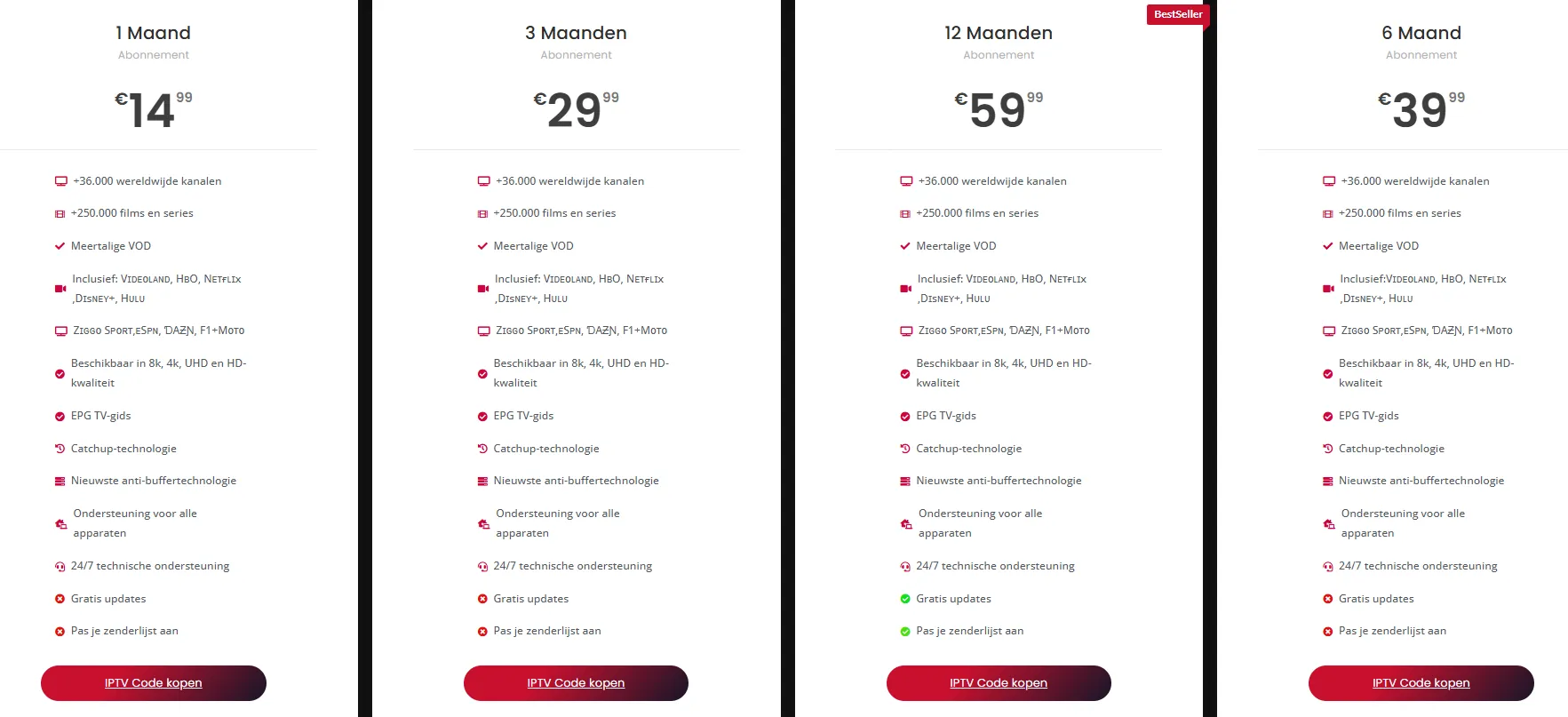
To get started, simply visit our subscription plans page to choose the plan that suits you best. Once you’ve selected your plan, you will receive an IPTV file M3U link via email. This link is crucial for setting up your IPTV service.
How to Set IPTV M3U
Setting up your IPTV M3U file is straightforward. Follow these steps:
- Download the M3U File: After subscribing, download the IPTV M3U file from the link provided in your email.
- Choose Your Device: Decide where you want to watch. Options include smart TVs, Android devices, or media players like VLC.
- Install an IPTV App: If you’re using a smart TV or mobile device, download an IPTV app that supports M3U files. Popular options include IPTV Smarters, Perfect Player, and VLC.
- Load the M3U File: Open the app and look for the option to add a new playlist. Paste the URL of your IPTV file M3U or upload the downloaded file.
- Start Watching: Once the file is loaded, you can start enjoying your favorite channels!
For more detailed instructions, check out our FAQ section.
Contact Us for Support and More Information
If you have any questions or need assistance with your IPTV M3U file setup, our support team is here to help. You can reach us through various channels:
- Email Support: Send us an email at [email protected] for any inquiries.
- Live Chat: Visit our website for live chat support during business hours.
- WhatsApp: For quick questions, feel free to message us directly at this link.
We also encourage you to explore our VOD list for additional content options and our channel list to see what channels are available with your subscription.
In conclusion, getting started with Dutch IPTV 4K is a seamless process. With our special offers and easy setup instructions for your IPTV M3U file, you’ll be enjoying high-quality content in no time. Don’t hesitate to reach out for support or more information; we’re here to ensure you have the best viewing experience possible!
